By COMSOL, Inc.
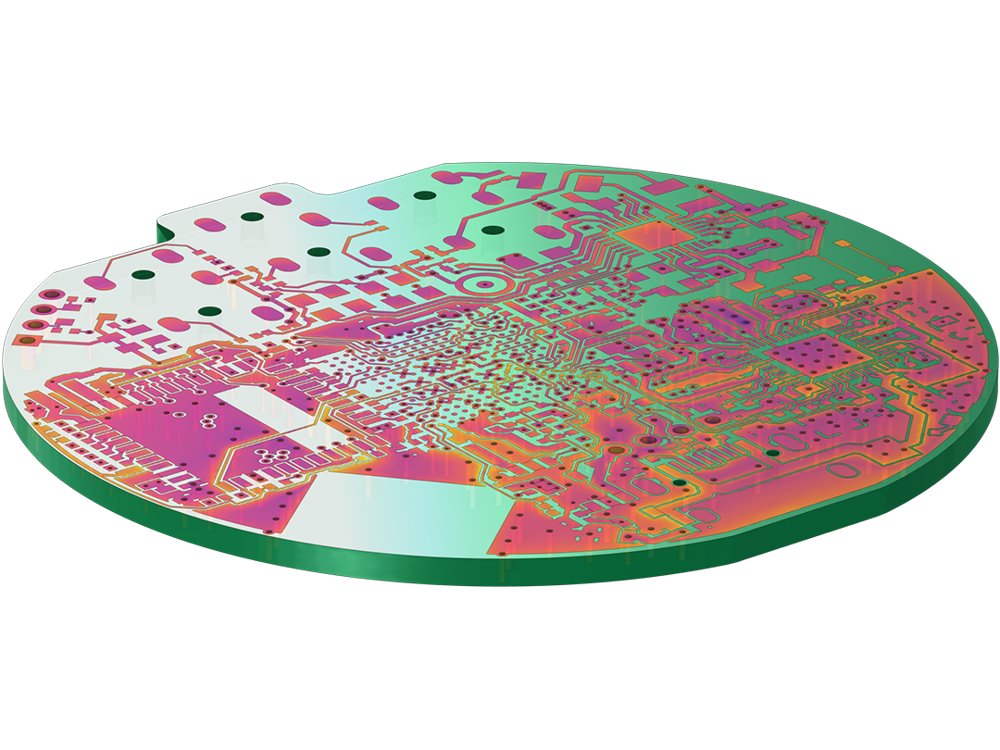
Treating Imported ECAD Files Depending on the file format, the import functionality provides different options for configuring how the geometric shapes contained in the layers of imported ECAD files should be used for geometry construction. Layers can be selected for import, layer thicknesses and elevations can be edited, and parameters can be fine-tuned to simplify the geometry. For a faster setup of the import process, the layer configuration information can be loaded from a text file. To further shorten the time spent on setting up simulations, the import can be configured to automatically create selections for each layer. These selections are then available when assigning physics settings to domains and boundaries. The 3D geometry objects constructed from the ECAD layouts are represented in the software just like any other 3D model and can be further edited using the geometry modeling features in COMSOL Multiphysics®. When the ECAD Import Module is combined with the CAD Import Module, the Design Module, or one of the LiveLink™ products, 3D geometry can be exported to the IGES, STEP, ACIS®, or Parasolid® file formats for use in other software. PCB Layouts The IPC-2581 and OBD++ file formats can handle most of the information needed to manufacture a PCB, including copper and dielectric layers as well as component footprints and outlines. Before import, the PCB layer layouts can be previewed, and the information to include can be selected. For generating a geometry for simulation, the import functionality can read some of this information, including the layout of the copper, dielectric, and via layers; the board outline; component outlines; and the layer stack-up information. An ECAD file for PCBs may also include information about the electrical nets that the copper traces and vias are part of. Users can choose to import either all or a selection of the available nets and then configure the import to use this information to generate selections. Domains created for pads and components can be identified using attributes such as component names, pin numbers, and electrical nets. The selections and attributes generated during import are useful when preparing the geometry for simulation and when setting up the physics and mesh. Creating 3D Models for Circuit Boards To obtain a 3D geometry, the PCB importer first generates the 2D geometry representing each layer by combining the shapes defined in the layout mask from the file. To avoid the very short edges that are often present when generating the geometry for copper traces, the import can be configured to eliminate short edges and ignore vertices with continuous tangents. Users can choose to keep the copper layers as surfaces in the geometry, which can be useful when approximating the traces as shells, or the layers can be extruded automatically according to the layer stack-up. This information can be read from the IPC-2581 and OBD++ file, and users can also enter it directly or import it from a separate text file. Via layers can be extruded and included in the 3D geometry for the PCB with options to create domains for the via plating and via core, making it possible to model both open and plugged vias. When combined with the Design Module, the ECAD Import Module enables further modification of the 3D geometry of a board, such as adding fillets to corners, as well as integration of the PCB geometry with imported CAD designs, for example, the device that contains the PCB. The 3D geometry of an imported PCB can also be exported to CAD formats for use in other programs. IC and MEMS Layouts The GDS file format (GDS-II) is commonly used when transferring the layer masks for the fabrication process of ICs and MEMS devices. The file is binary, with the shapes on the layers made of polygons — these can be organized into libraries called cells, which can be instantiated into other cells and layers. The different layers usually represent different steps in the manufacturing process, and the import can be configured to generate the geometry for selected cells and layers. The import can also recognize the data type that is sometimes used in GDS files to further differentiate between the polygon shapes on the layers. For an efficient workflow, users can select the option to automatically assign the geometric entities and objects generated by the GDS importer to named selections based on the layers, cells, and data types that the imported shapes belong to. These selections are then available as input in downstream geometry operations and when setting up the physics and the mesh. Creating 3D Geometry from GDS Files To generate geometry objects suitable for simulation, the GDS importer automatically recognizes arcs and straight lines, and thereby eliminates the short edge segments that would otherwise result in an unnecessarily fine mesh. In addition to the arc and line recognition, the same options for removing short edges from the resulting geometry can be used for importing layouts for PCBs. The GDS format does not specify how the layers should be used for the fabrication process; this information is usually supplied in some other way. When importing a GDS file, a thickness and elevation for each layer can be configured to create a 3D structure by extrusion. This method is suitable when a layer is deposited and patterned over a flat surface and contains the mask for a positive photoresist. Modeling Devices with Complex 3D Structures To create more complex 3D structures, the geometry objects generated by the GDS import can be combined with other geometry objects via Boolean geometry operations. For example, when importing the mask for a negative photoresist, the extruded layer can be removed from other objects after the import by using a Boolean difference operation. When the ECAD Import Module is combined with the Design Module, users can also efficiently emulate semiconductor fabrication processes where the layers are deposited and patterned over nonflat surfaces. This is done on the geometry by offsetting, in the normal direction, the faces where the layer is to be deposited. The resulting object is then intersected with the extruded layer mask from the GDS file to create the geometry for the patterned layer.
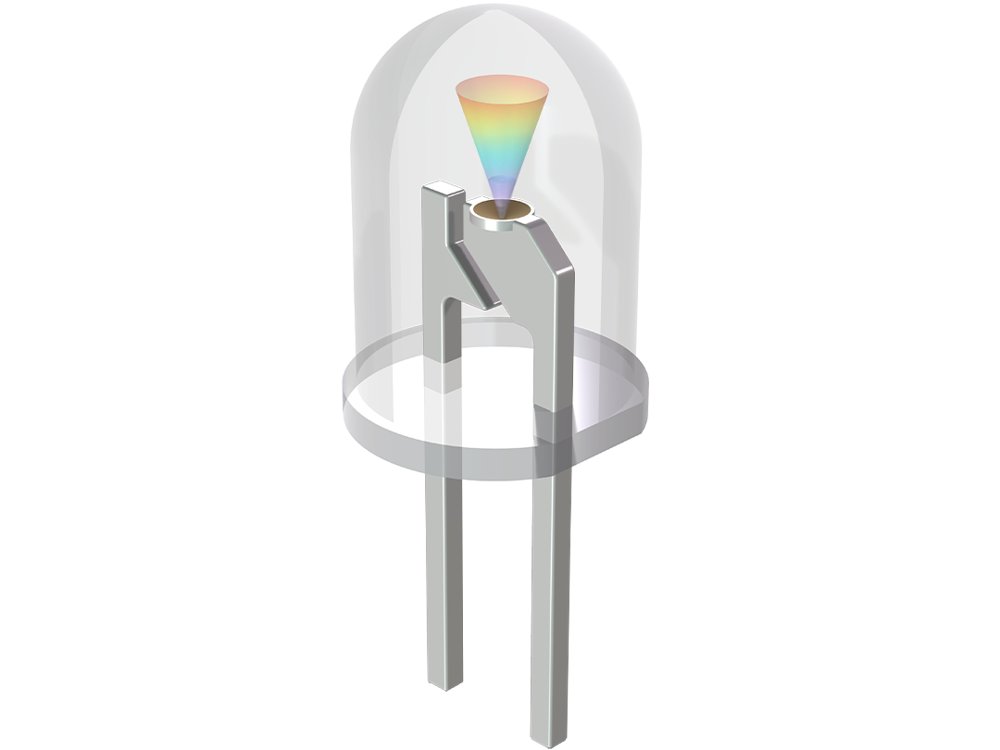
Analyze various kinds of transistors, sensors, photonic devices, quantum systems, and novel semiconductor architectures. Features and Functionality in the Semiconductor Module: Drift–Diffusion Equations: The cornerstone of the Semiconductor Module is the Semiconductor interface, which solves the combined drift–diffusion and Poisson’s equations. This interface makes it possible to model both insulating and semiconducting domains in a semiconductor device. One application of the drift–diffusion formulation is to simulate the fundamental physics of a device using Fermi–Dirac or Maxwell–Boltzmann statistics. The available analysis types for drift–diffusion equations include thermal equilibrium, steady-state, transient response, and small-signal analysis. Doping and Material Models: Specifying the doping distribution of a material is critical for the modeling of semiconductor devices. The Semiconductor Module includes a range of features that enable virtually any doping profile to be realized. Advanced options include incomplete ionization and, for high doping levels, band gap narrowing. Built-in options for doping profiles include Linear, Gaussian, and Error function. User-defined doping profiles can be specified by typing a mathematical expression or by using the output from another simulation as a basis for the doping profile. It is also possible to easily preview doping profiles prior to solving. In addition, it is straightforward to define doping profiles based on imported lookup tables. This strategy is useful when the required distribution cannot be defined analytically, for example, if the doping profile is output from an external simulation. Metal–Semiconductor Contacts: A dedicated Metal Contact boundary feature can be used for modeling metal–semiconductor contacts. This terminal type supports voltage, current, power, and connection to an external circuit. An ideal Schottky contact type is available for modeling a simple rectifying metal–semiconductor junction where the current–voltage characteristics depend on the potential barrier formed at the junction. To incorporate surface recombination effects and surface charge densities from surface traps in this model, Trap-Assisted Surface Recombination boundary conditions can be added to the same boundary selection as the metal contact condition. Schrödinger Equation: The Schrödinger Equation interface solves the Schrödinger equation for a single particle in an external potential. This interface is useful for general quantum mechanical problems and quantum-confined systems, such as quantum wells, wires, and dots (with the envelope function approximation). Appropriate boundary conditions and study types are implemented for the user to easily set up models in order to compute relevant quantities in various situations, such as the eigenenergies of bound states, the decay rates of quasi bound states, the transmission and reflection coefficients, the resonant tunneling condition, and the effective band gap of a superlattice structure. Optical Transitions: An Optical Transitions feature is available for modeling optical absorption and both stimulated and spontaneous emission within a semiconductor. Stimulated emission or absorption occurs when a transition takes place between two quantum states in the presence of an oscillating electric field, typically produced by a propagating electromagnetic wave. Spontaneous emission occurs when transitions from a high-energy to a lower-energy quantum state occur. Semiconductor Optoelectronics: The Semiconductor Module includes two multiphysics interfaces for modeling the interaction of electromagnetic waves and semiconductors. To use this functionality, the Wave Optics Module is required. The functionality is based on the Frequency Domain interfaces and Beam Envelopes interface within the Wave Optics Module. Couplings between Semiconductor and Electromagnetic Waves interfaces take place through the Optical Transitions feature in the Semiconductor Module. This feature introduces a stimulated emission generation term on domains within the Semiconductor interface, which is appropriate for direct-band-gap materials. This term is proportional to the optical intensity in the corresponding feature in the Electromagnetic Waves interface. Furthermore, the Optical Transitions feature can also account for spontaneous emission in direct-band-gap materials. The effect of the light absorption or emission is accounted for by a corresponding change in the complex permittivity or refractive index. Carrier Mobility Models: Realistic models for carrier mobility are important when simulating semiconductor devices with a drift–diffusion approach. In these cases, the mobility is limited by a scattering of the carriers within the material. The Semiconductor Module includes several predefined mobility models as well as the option for users to define their own mobility models. The predefined mobility models include options for high-field velocity saturation, surface scattering, and phonon, impurity, and carrier–carrier scatterings. User-defined mobility models can be readily specified by typing appropriate expressions into the user-defined feature; scripting or coding is not required. These user-defined mobility models can be combined arbitrarily with the predefined mobility models built into the software. Generation and Recombination: Generation and recombination processes such as Auger recombination, direct recombination, impact ionization generation, and trap-assisted recombination can be included in models using the Semiconductor interface. User-defined recombination and generation features are available to manually set the rates of these processes. The Trap-Assisted Recombination model is used for setting the electron and hole recombination rates in indirect-band-gap semiconductors. By default, steady-state recombination is modeled using the Shockley–Read–Hall trapping model, which considers states located at the midgap. An Explicit trap distribution model can also be used for specifying discrete traps or continuous density of trap states at energies within the band gap. Insulator–Semiconductor Contacts: The Semiconductor interface includes a feature for modeling a thin insulating material (oxide) between a semiconductor and a metal. This feature also supports small-signal analysis, which is useful for computing I–V curves. For modeling a general insulator, a charge conservation domain feature can be added to the Semiconductor interface in a way that is similar to how the feature is added when modeling with the general interface for Electrostatics. For insulating domains, several boundary conditions can be modeled, including: - The semiconductor–insulator interface - External surface charge accumulation - Electric displacement field - Floating potential Schrödinger–Poisson Equation: The Schrödinger–Poisson Equation interface combines the Schrödinger Equation interface and Electrostatics interface to model charge carriers in quantum-confined systems. This interface can be used for modeling quantum-confined devices such as quantum wells, wires, and dots as well as multicomponent wave functions for modeling multiband systems and particles with spin. Furthermore, it has the ability to simulate general quantum systems, such as the formation of a vortex lattice in a Bose–Einstein condensate. When using the Schrödinger–Poisson Equation interface, the electric potential contributes to the potential energy term in the Schrödinger equation, and a statistically weighted sum of the probability densities from the eigenstates contributes to the space charge density. A dedicated study type is available to automatically generate the solver settings required by the self-consistent solution of the bidirectionally coupled system. The interface includes an option for modeling an open boundary with incoming and outgoing waves, which is used for simulating resonant tunneling conditions. In addition, a Periodic boundary condition is available for modeling superlattices. Connecting to Electrical Circuits: The Electrical Circuit interface is used for creating lumped systems to model currents and voltages in circuits. This functionality is beneficial when modeling typical voltage and current sources, resistors, capacitors, inductors, and other semiconductor devices. Electrical circuit models can also connect to distributed field models in 2D and 3D. Additionally, circuit topologies can be exported and imported in the SPICE netlist format. Electrical circuits can be combined with physics models of semiconductor devices to simulate realistic loads, for example. Semiconductor–Electrostatics Coupling: When modeling ferroelectric and piezoelectric semiconductors, or other semiconductor systems that require electrostatic formulations beyond those built into the Semiconductor interface, a multiphysics coupling can be used to link the Semiconductor interface with a separate Electrostatics interface. This approach enables the electrostatic equation to be defined and controlled independently, making it possible to use more advanced electrostatic formulations when needed. Depending on the selected formulation and features, additional add-on products, such as the AC/DC Module, may be required. Multiphysics of Semiconductor Devices: Coupled physical effects often play important roles in semiconductor device performance. By combining different physics, such as electrostatics, heat transfer, wave optics, ray optics, and chemical species transport, multiphysics simulations can capture the complex interactions that occur within semiconductor devices. Examples of multiphysics analysis of semiconductor devices include: - Modeling of thermal effects within a power device - Illumination of silicon solar cells by modeling the solar rays - Modeling stimulated and spontaneous emission by accounting for wave optics - Coupling of a semiconductor and electrolyte model using species transport - Analyzing ferroelectric and piezoelectric semiconductors Combining the Semiconductor Module with other products in the COMSOL product suite enables multiphysics analysis that provides a more realistic and comprehensive understanding of semiconductor device behavior. These analyses can lead to the development of more efficient and advanced semiconductor devices, with improved performance and capabilities.
CATEGORY
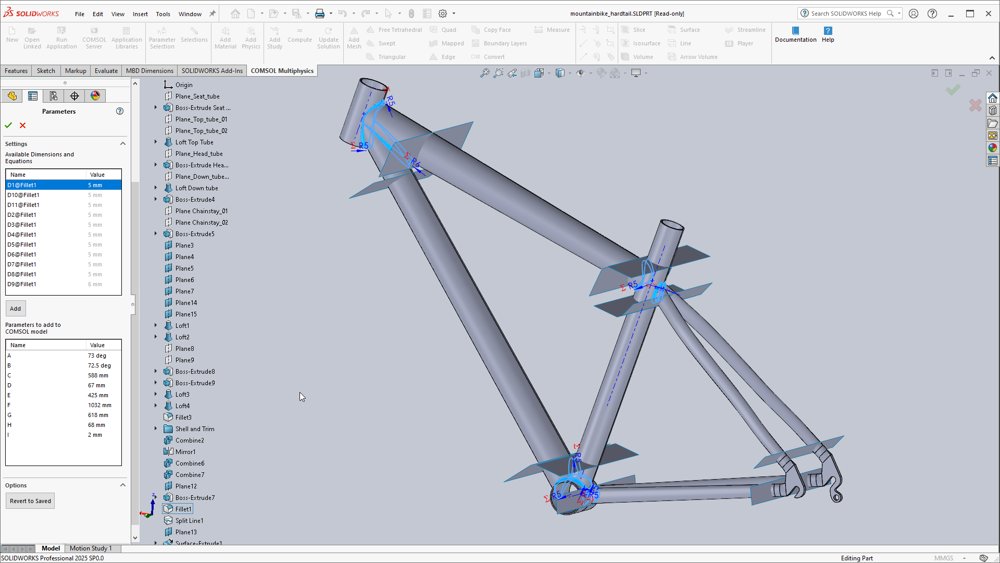
The core COMSOL Multiphysics package provides geometry modeling tools for creating parts using solid objects, surfaces, curves, and Boolean operations. Geometries are defined by sequences of operations, where each operation is able to receive input parameters for easy edits and parametric studies in multiphysics models. The connection between the geometry definition and defined physics settings is fully associative — a change in the geometry will automatically propagate related changes throughout the associated model settings. Geometric entities such as material domains and surfaces can be grouped into selections for subsequent use in physics definitions, meshing, and plotting. Additionally, a sequence of operations can be used to create a parametric geometry part, including its selections, which can then be stored in a Part Library for reuse in multiple models. View a list of geometry modeling features - Primitives: - Block, sphere, cone torus, ellipsoid, cylinder, helix, pyramid, ahexahedron - Parametric curve, parametric surface, polygon, Bezier polygon, interpolation curve, point - Extrude, revolve, sweep, loft (Requires the Design Module) - Boolean operations: union, intersection, difference, partition - Transformations: array, copy, mirror, move, rotate, scale - Conversions: - Convert to solid, surface, and curve - Midsurface, thicken, split (Requires the Design Module) - Project to faces (Requires the Design Module) - Transform and offset faces (Requires the Design Module) - Chamfer and fillet (The corresponding 3D operations require the Design Module) - Geometry cleanup and virtual operations: - Remove details - Ignore: vertices, edges, and faces - Form composite: edges, faces, domains - Collapse: edges, faces - Merge: vertices, edges - Mesh control: vertices, edges, faces, domains - Hybrid modeling with solids, surfaces, curves, and points - Work plane with 2D geometry modeling - CAD import and interoperability with add-on CAD Import Module, Design Module, and LiveLink products for CAD - CAD repair and defeaturing with add-on CAD Import Module, Design Module, and LiveLink products for CAD: - Cap faces, delete - Fillets, short edges, sliver faces, small faces, faces, spikes - Detach faces, knit to solid, repair The COMSOL software contains predefined physics interfaces for modeling a wide range of physics phenomena, including many common multiphysics couplings. Each physics interface provides specific settings dedicated to the associated scientific or engineering field. Upon selection, the software suggests available study types, such as time-dependent or stationary solvers. Once chosen, the appropriate numerical discretization of the mathematical model, solver sequence, and visualization and results settings are implemented. All of the settings are, of course, editable for the user to manipulate. The COMSOL Multiphysics platform is preloaded with a large set of core physics interfaces for fields such as solid mechanics, acoustics, fluid flow, heat transfer, chemical species transport, and electromagnetics. Expanding the core package with add-on modules from the COMSOL product suite provides access to a range of more specialized user interfaces with modeling capabilities suited to specific engineering fields. View a list of physics-based modeling features - Physics interfaces: - Electric currents - Electrostatics - Heat transfer in solids and fluids - Joule heating - Laminar flow - Pressure acoustics - Solid mechanics - Transport of diluted species - Magnetic fields - Application-specific modules contain many additional physics interfaces - Materials: - Isotropic and anisotropic materials - Discontinuous materials - Spatially varying materials - Time-varying materials - Nonlinear material properties as a function of any physical quantity The COMSOL Multiphysics software offers this level of flexibility with its built-in equation interpreter that can interpret expressions, equations, and other mathematical descriptions on the fly before it generates a numerical model. Adding and customizing expressions in the physics interfaces allows for freely coupling them with each other in order to simulate multiphysics phenomena. The capabilities for customization go even further. With the Physics Builder, it is also possible to use custom equations to create new physics interfaces for easy access and manipulation when they are to be included in future models or shared with colleagues. View a list of equation-based modeling features - Partial differential equations (PDEs) - Weak form PDEs - Arbitrary Lagrangian–Eulerian (ALE) methods for formulating deformed geometry and moving mesh problems - Algebraic equations - Ordinary differential equations (ODEs) - Differential algebraic equations (DAEs) - Sensitivity analysis (optimization available with the add-on Optimization Module) - Curvilinear coordinate computation For discretizing and meshing a model, the COMSOL Multiphysics software uses different numerical techniques depending on the type of physics, or the combination of physics, being studied. The predominant discretization methods are finite-element based. Accordingly, the general-purpose meshing algorithm creates a mesh with appropriate element types to match the associated numerical methods. For example, the default algorithm may use free tetrahedral meshing or a combination of tetrahedral and boundary-layer meshing, with a combination of element types, to provide faster and more accurate results. View a list of meshing features - Free tetrahedral meshing - Swept mesh with prism and hex elements - Boundary-layer meshing - Tetrahedral, prismatic, pyramidal, and hexahedral volume elements - Free triangular meshing of 3D surfaces and 2D models - Mapped and free quad meshing of 3D surfaces and 2D models - Copy mesh operation - Virtual geometry operations - Mesh partitioning of domains, boundaries, and edges - Import and edit functionality for externally generated volume and surface meshes When a physics interface is selected, a number of different studies (analysis types) are suggested by COMSOL Multiphysics. For example, for solid mechanics analyses, the software suggests time-dependent, stationary, or eigenfrequency studies; for CFD problems, the software would only suggest time-dependent and stationary studies. Other study types can also be freely selected for any type of analysis. Study step sequences structure the solution process in order to enable users to select the model variables for which they want to solve in each study step. The solution from any of the previous study steps can be used as input to a subsequent study step. Any study step can be run with a parametric sweep, which can include one or multiple parameters in a model, from geometry parameters to settings in the physics definitions. Sweeps can also be performed using different materials and their defined properties, as well as over lists of defined functions. Using the Optimization Module, optimization studies for topology optimization, shape optimization, or parameter estimations based on a multiphysics model can be performed. COMSOL Multiphysics offers both gradient-free and gradient-based methods for optimization. For parameter estimation, least-squares formulations and general optimization problem formulations are available. Built-in sensitivity studies are also available, where they compute the sensitivity of an objective function with respect to any parameter in the model. View a list of study types - Stationary - Time dependent - Eigenfrequency - Eigenvalue - Frequency domain - Parametric sweep - Function sweep - Material sweep - Sensitivity - Model reduction - Surrogate model training - Optimization and parameter estimation: - Nelder–Mead - Bound optimization by quadratic approximation (BOBYQA) - Constraint optimization by linear approximation (COBYLA) - Method of moving asymptotes (MMA) - Levenberg–Marquardt - Efficient global optimization (EGO) The equation interpreter in the COMSOL Multiphysics software delivers the best possible fuel to the numerical engine: the fully coupled system of PDEs for stationary (steady), time-dependent, frequency-domain, and eigenfrequency studies. The system of PDEs is discretized using the finite element method (FEM) for the space variables (x, y, z). For some types of problems, the boundary element method (BEM) can also be used to discretize space. For space- and time-dependent problems, the method of lines is used, where space is discretized with FEM (or BEM), thus forming a system of ODEs. These ODEs are then solved using advanced methods, including implicit and explicit methods for time stepping. Time-dependent and stationary (steady) problems can be nonlinear, also forming nonlinear equation systems after discretization. The engine in COMSOL Multiphysics delivers the fully coupled Jacobian matrix, which is the compass that points the nonlinear solver to the solution. A damped Newton method is used for solving the nonlinear system for stationary problems or during time stepping for time-dependent problems. The Newton method then solves a sequence of linear equation systems, using the Jacobian matrix, in order to find the solution to the nonlinear system. For linear problems (also solved in the steps of the nonlinear solver, see above), the COMSOL software provides direct and iterative solvers. The direct solvers can be used for small- and midrange-sized problems, while the iterative solvers can be used for larger linear systems. The COMSOL software provides a number of iterative solvers with cutting-edge preconditioners, such as multigrid preconditioners. These preconditioners provide robustness and speed in the iterative solution process. The different physics interfaces can also provide the solver settings with suggestions on the best possible default settings for a family of problems. These settings are not hardwired; it is possible to change and manually configure the solver settings directly under each solver node in the user interface to tune the performance for a specific problem. When available, the solvers and other computationally intense algorithms are fully parallelized to make use of multicore and cluster computing. Both shared and distributed memory methods are available for direct and iterative solvers as well as for large parametric sweeps. All steps of the solution process can make use of parallel computing. The functionality for creating surrogate models provides an efficient way to approximate finite element solutions with fast-evaluating functions. A dedicated study uses design of experiments (DOE) methods for efficient data generation, which is then used to train the surrogate models. Surrogate models are widely applicable, enabling faster apps, function interpolation, and uncertainty quantification. They can also be differentiated multiple times with respect to input parameters, making them suitable for gradient-based optimization. View a list of solvers - Space discretization: - FEM - Nodal-based Lagrange elements and serendipity elements of different orders - Curl elements (also called vector or edge elements) - Petrov–Galerkin and Galerkin least square methods for convection-dominated problems and fluid flow - Adaptive mesh and automatic mesh refinement during the solution process - BEM - Discontinuous Galerkin method - Space-time discretization: - Method of lines (FEM and BEM for space) - ODE and DAE time-stepping solvers: - Implicit methods for stiff problems (BDF) - Explicit methods for nonstiff problems - Nonlinear algebraic systems: - Damped Newton methods - Double dog-leg - Linear algebraic systems: - Direct dense solvers: LAPACK - Direct sparse solvers: MUMPS, PARDISO, SPOOLES, cuDSS - Iterative sparse solvers: GMRES, FGMRES, BiCGStab, conjugate gradients, TFQMR - Preconditioners: SOR, Jacobi, Vanka, SCGS, SOR Line/Gauge/Vector, geometric multigrid (GMG), algebraic multigrid (AMG), Auxiliary Maxwell Space (AMS), Incomplete LU, Krylov, domain decomposition - All preconditioners can potentially be used as iterative solvers - Additional discretization methods are available in add-on products, including particle and ray tracing methods - Surrogate modeling: - Data generation via design of experiments methods, including Latin hypercube sampling - Deep neutral network - Gaussian process (Requires the Uncertainty Quantification Module) - Polynomial chaos expansion (Requires the Uncertainty Quantification Module) Show off results to the world. COMSOL Multiphysics sports powerful visualization and evaluation tools so that results can be presented in a meaningful and polished manner. The built-in tools can be used or visualizations can be expanded with derived physical quantities by entering mathematical expressions into the software. Therefore, just about any quantity of interest related to simulation results can be visualized in COMSOL Multiphysics. Visualization capabilities include surface, slice, isosurface, cut plane, arrow, and streamline plots, to name just a few plot types. A range of numerical postprocessing tools are available for evaluation of expressions, such as integrals and derivatives. The max, min, average, and integrated values of any quantity or derived quantities throughout volumes, on surfaces, along curved edges, and at points can be computed. Results evaluation tools specific to certain areas of engineering and science have also been included in many of the physics-based modules. Data can be exported and processed via third-party tools. Numerical results can be exported to text files on the.txt,.dat, and.csv formats as well as to the unstructured VTK format. With LiveLink for Excel, results can be exported to the Microsoft Excel spreadsheet software file format (.xlsx). Images can be exported to several common image formats, as well as the glTF file format for exporting 3D scenes. Animations can be exported in the WebM format and as animated GIF, Adobe Flash technology, or AVI files. Reports summarizing the entire simulation project can be exported to HTML (.htm,.html), Microsoft Word file format (.doc), or Microsoft PowerPoint file format (.pptx). View a list of results visualization and evaluation features - Visualization: - Surface plots - Isosurface plots - Arrow plots - Slice plots - Streamline plots - Contour plots - Evaluation: - Integration, average, max, and min of arbitrary quantities over volumes, surfaces, edges, and points - Custom mathematical expressions including field variables, their derivatives, spatial coordinates, time, and complex-valued quantities Specialized visualization and evaluation techniques are included in many of the physics-based modules. - Support for 3Dconnexion SpaceMouse devices - Import and export: - Text - Microsoft Excel.xlsx format - Images - Animations - Mesh - CAD formats - And more
CATEGORY
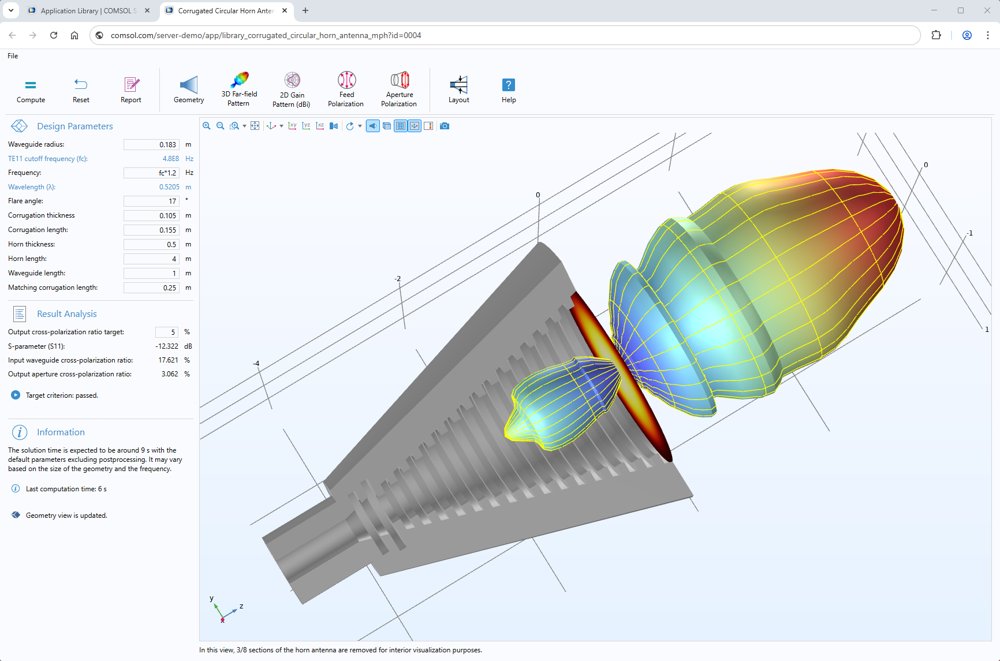
When the simulation experts in an organization turn their models into applications, the overall simulation, design, and manufacturing workflow is improved. The simulation expert no longer has to rerun the same or slightly different analyses for other collaborators or customers, and the organization can spread the advantages of simulation to a larger group of people. To build their own computational applications, your simulation experts need COMSOL Multiphysics® with its built-in Application Builder. To make these applications accessible to many people at a fraction of the cost, your organization needs COMSOL Server™. Through applications, COMSOL Server™ gives users access to the same powerful simulation technology that is found in COMSOL Multiphysics®. Each simulation application has its own customized user interface, where the application creator can control the inputs and outputs that the application user can apply and modify. Experts create these apps by including only the parameters relevant to the design of a specific process or product. This better transfers the simulation expert’s knowledge and experience to the people involved in the design and manufacturing processes across all engineering disciplines in an organization — even those without prior simulation experience. COMSOL Server™ is the product for deploying applications and bringing them to the hands of colleagues and team members. It is also the hub for managing many different applications over multiple functions or operations in an organization. All users logged into the COMSOL Server™ product can run applications on the computer where it is installed. Alternatively, the load can be distributed by installing COMSOL Server™ to run applications on multiple computers. In that case, one computer is set as the primary server for handling user account and access management, and a series of other computers are used for computations, called secondary servers. It is also possible to have multiple sets of primary and secondary servers, all controlled by a single license manager, which is useful if you have teams that want to use only the computational resources that are allocated for them. When a user runs an application via the web browser or COMSOL Client, their own computer or mobile device does not need to perform the multiphysics calculations. These can all be done on the server computer(s). Since you are controlling the access and use of applications through a centralized hub, any changes or updates you make are immediately available to all users. You can run up to four application sessions per concurrent user. By using cluster computing technology with COMSOL Server™, it is possible to configure applications to run on a variety of cluster architectures. For applications designed to distribute the computational workload, computations can be run in parallel for large parametric sweeps or large models. A COMSOL Server™ license is enabled out-of-the-box for an unlimited number of cores and compute nodes without extra licensing fees. As the administrator, you have complete control over your organization's applications, including who can access and run them, via the web interface in COMSOL Server™. The main dashboard presents available applications in a straightforward Application Library format. From here, it is easy to launch applications and control their permissions within your organization. Different menu items on the dashboard lead you to interfaces for monitoring your CPU and memory usage and controlling your sessions that are running applications. If COMSOL Server™ has been installed on several computers, the primary server's web interface gives you an overview of all user sessions across all secondary servers. You can create and control user accounts and user groups, either on the fly or by linking to preexisting user databases on your network based on either Active Directory by Microsoft® or LDAP. From the level of an administrator or power user, you can also set permissions for user groups and grant Application Library access to users so that they can upload and edit applications. Other tools enable you to control where applications can be run using multiple cores or clusters, or restricted to a one-application-per-core basis. Want to customize the web interface and your applications to match your organization's branding? Easy-to-use tools enable you to make the Application Library in COMSOL Server™, the applications that you run, and the web interface all your own. You can install COMSOL Server™ anywhere — typically, on a server or cluster within your organization's network, but it can also be installed for offline or personal use on a laptop or desktop computer. Applications are run through any popular web browser, such as the Google Chrome™, Firefox®, Internet Explorer®, Microsoft Edge®, or Safari® browsers. You do not need any plugins to run an application, yet you get immediate access to interactive 1D, 2D, and 3D graphics. On native Windows® operating systems, you can also run applications from an installed thin desktop client, COMSOL Client for Windows®, which can be downloaded for free from the Product Download page. If your application was built using components from one of the LiveLink™ products for CAD and it requires a connection to the third-party CAD program, then you need the desktop client. While the Application Builder requires the Windows® version of COMSOL Multiphysics® to build applications, COMSOL Server™ is more flexible for running them. You can run applications on Windows®, Linux®, and macOS platforms, as well as any operating system that supports a major web browser. After you have installed COMSOL Server™, you decide who can access and run applications on it. COMSOL Server™ incorporates favorable licensing to allow maximum and flexible use. You can allow access to multiple users within your organization or, if you wish, to external vendors, clients, partners, or customers. You can also allow users to run applications on your COMSOL Server™ license from anywhere in the world. You can even host your license on a virtual private cloud (VPC) and be paid for use of your applications and license of COMSOL Server™ by third parties. COMSOL Server™ supports the same set of add-on products and modules as COMSOL Multiphysics® does. If you want to distribute applications for teaching and academic research purposes, then COMSOL Server™ is also tailored to those needs. Comparison: COMSOL Server™ vs. Compiled Standalone App - Run on cluster: COMSOL Server™ yes; Compiled Standalone App no - User access control: COMSOL Server™ yes; Compiled Standalone App yes (The application author can password protect, set an expiration date, and lock to a hostid) - Version control (to latest version): COMSOL Server™ yes; Compiled Standalone App no - Run from browser: COMSOL Server™ yes; Compiled Standalone App no - Run apps without COMSOL® paid-for license: COMSOL Server™ yes; Compiled Standalone App no - Run on any computer: COMSOL Server™ with internet or network connection; Compiled Standalone App no internet connection required
CATEGORY
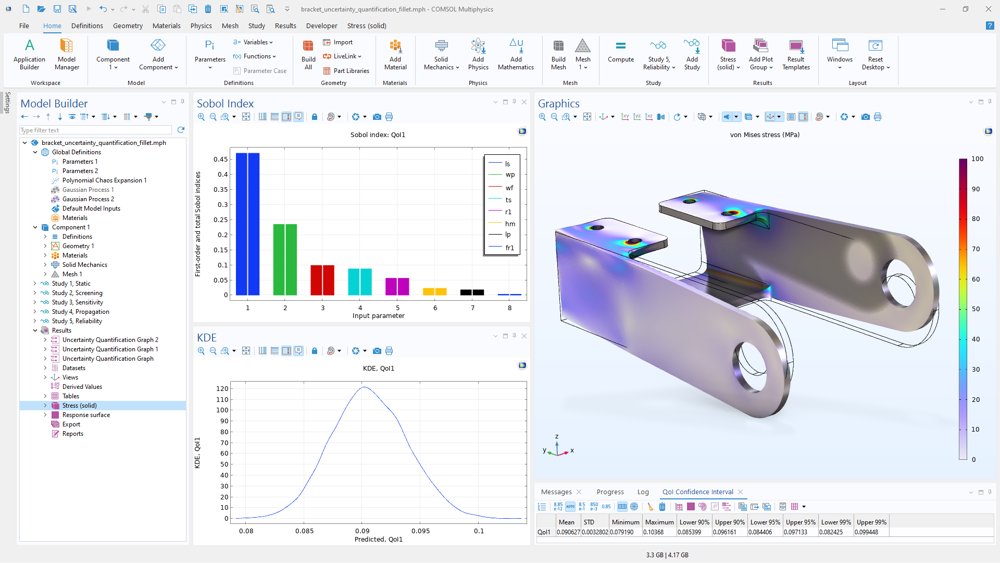
The Uncertainty Quantification Module is applicable to any physics model computed with the COMSOL Multiphysics® software, as well as any mathematical expression of various solved-for field quantities. Any uncertain model input, whether it be a physics setting, geometric dimension, material property, or discretization setting, can be treated as an input parameter, and any model output can be used to define the quantities of interest. The input parameters can be sampled analytically with probability distributions or with user-specified data. The analytically sampled input parameters can be correlated and uncorrelated, where the correlated input parameters can be grouped into correlation groups and sampled with the Gaussian copula method. Screening: The Screening, MOAT study type implements a lightweight global screening method that gives a qualitative measure of the importance of each input parameter. The method is purely sample based, using the Morris one-at-a-time (MOAT) method, and requires a relatively small number of COMSOL model evaluations. This makes it an ideal method when the number of input parameters is too large to allow more computationally expensive uncertainty quantification studies. For each quantity of interest, this MOAT method computes the MOAT mean and MOAT standard deviation for each input parameter. These values are presented in a MOAT scatter diagram. The ranking of the MOAT mean and MOAT standard deviations gives the relative importance of the input parameters. A high value of the MOAT mean implies that the parameter is significantly influencing the quantity of interest. A high value of the MOAT standard deviation implies that the parameter is influential and that it is either strongly interacting with other parameters or that it has a nonlinear influence, or both. Sensitivity Analysis: The Sensitivity Analysis study type is used to compute how sensitive the quantities of interest are with respect to the input parameters. This study type includes two methods: the Sobol and correlation methods. The Sobol method analyzes the entire input-parameter distribution and decomposes the variance of each quantity of interest into a sum of contributions from the input parameters and their interactions. For each input parameter, the Sobol method computes the Sobol indices. The first-order Sobol index shows the variance of a quantity of interest attributed to the variance of each input parameters individually. The total Sobol index shows the variance of a quantity of interest attributed to the variance of each input parameters and its interaction with the other input parameters. The Sobol indices for each quantity of interest and all parameters are presented in a dedicated Sobol plot where the histograms are ordered by total Sobol index. The quantity of interest is most sensitive to the input parameter with the highest total Sobol index. The difference between the total Sobol index and first-order Sobol index for an input parameter measures the effect of the interaction between this input and others. Compared to the screening method, sensitivity analysis is used to quantitatively analyze how uncertainties in the quantities of interest apportion to the different input parameters. This method requires more computational resources since the computation of accurate Sobol indices relies on a high-quality surrogate model. The correlation method computes the linear and monotonic relationship between each input parameters and the quantities of interest. For sensitivity analysis based on the correlation method, four types of correlations are computed: bivariate, ranked bivariate, partial, or ranked partial correlation. Uncertainty Propagation: The Uncertainty Propagation study type is used to analyze how the uncertainties of input parameters propagate to each quantity of interest by estimating their probability density function (PDF). The underlying physics that maps the input parameters to the quantities of interest through COMSOL Multiphysics® model evaluations is for most applications impossible to compute analytically. For this reason, a Monte Carlo analysis is necessary to approximate the PDFs. Similar to the Sobol method, a surrogate model is used to dramatically reduce the computational cost of the Monte Carlo analysis. For each quantity of interest, a kernel density estimation (KDE) is performed and visualized as a graph, as an approximation of the PDF. Furthermore, based on this analysis, a confidence interval table provides, for each quantity of interest, the mean, standard deviation, minimum, maximum, and lower and upper bound values corresponding to confidence levels of 90%, 95%, and 99%. For each study-dependent quantity of interest, a plot of the mean with a 95% prediction interval is presented to show how the uncertainty of the quantity of interest varies with the study-dependent parameters. Reliability Analysis: Compared to other uncertainty quantification study types, which investigate the overall uncertainty of the quantities of interest, the Reliability analysis, EGRA method addresses a more direct question. Given a nominal design and some specific uncertain inputs, what is the probability that the design fails? The failure can be a complete breakdown of the design, but it can also be phrased in terms of a quality criterion. To ensure the reliability, the traditional approach of modeling and simulation is to use safety margins and worst-case scenarios. With a proper reliability analysis, it is possible to avoid overestimation and underestimation, since estimates of the actual probability can be made. A rough estimate can be drawn from the confidence interval table from the uncertainty propagation for each quantity of interest. But with reliability analysis, a more sophisticated reliability criteria can be defined based on combinations of the quantities of interest and corresponding thresholds. The efficient global reliability analysis (EGRA) method used for the reliability analysis study efficiently directs the computational resources to the limit state that separates the failure and success of the design. Surrogate Models and Response Surfaces: Sensitivity analyses computed with the Sobol method, uncertainty propagation, and reliability analysis all rely on an accurate Monte Carlo-type analysis. This often requires a large number of evaluations to achieve good accuracy. For realistic problems where a COMSOL Multiphysics® model evaluation might require significant resources and where the uncertainty quantification analysis involves several parameters, a Monte Carlo analysis conducted only with COMSOL Multiphysics® model evaluations is computationally infeasible. A key feature of the Uncertainty Quantification Module is its ability to train and use a so-called surrogate model, also known as a metamodel, for a particular UQ analysis to save computational resources. A surrogate model is a compact mathematical model constructed to represent and evaluate the quantities of interest in the domain of interest defined by the input parameters. This model is completely independent of the underlying COMSOL Multiphysics® model and can, when trained properly, be used instead of the COMSOL Multiphysics® model to predict values for the quantities of interest for other values of the input parameters than those solved for. The process of constructing a surrogate model is typically adaptive and the surrogate model can approximate the original model to a high degree of accuracy. With user-defined tolerances, the accuracy of the surrogate models can be increased. A higher level of accuracy requires additional COMSOL Multiphysics® model evaluations. Once a surrogate model has been built, an independent verification can be performed to further test its validity, and response surface data can easily be computed for the entire input parameters space. A response surface can then be visualized, where one quantity of interest is plotted versus two input parameters at a time. The surrogate models are available as global functions for general use. Inverse Uncertainty Quantification: Inverse uncertainty quantification (inverse UQ) is used when some of the input parameters have unknown probability distributions, known as calibration parameters. Using inverse UQ, experimental data can be propagated backward to gain insight into the statistical properties of these calibration parameters. In order to apply inverse UQ, a prior probability distribution is required for each calibration parameter before the analysis can be conducted. Experimental data is typically available for the quantities of interest and the parameters used in experiments. There are also calibration input parameters that cannot be directly measured. For instance, consider an experiment where we want to calibrate the Young's modulus of a mechanical part. We should conduct an experiment that measures the tensile stress as a function of the specified material displacement. An inverse UQ study should then be set up to use the experimental data and prior knowledge of the Young's modulus to calibrate the probability distribution that would best reproduce the measured values of the tensile stress from the experiments. Inverse UQ can be applied to a wide range of physics-based models, including those related to structural mechanics, fluid flow, acoustics, heat transfer, electromagnetics, and chemical engineering. To make the computation of the calibration parameters' posterior probability distributions feasible, a surrogate model is used together with a Markov chain Monte Carlo (MCMC) method. After the computation, the joint and marginal probability distributions of the calibrated input parameters can be visualized. Additionally, a confidence interval table is generated that provides information such as the mean; the standard deviation; the minimum and maximum values; and the lower- and upper-bound values corresponding to confidence levels of 90%, 95%, and 99% for each calibrated input parameter.
CATEGORY
