By CytoViva
The CytoViva 3-D System allows the user can locate objects of interest in a 3-D space. It does this by acquiring multiple Z planes and performing our custom software routines to locate and observe the positions of these objects. For example the location of nanoparticles can be located in relative position to a cell that is either stained or unstained. Here red spheres show the location of gold nanoparticles inside/around a cell nucleus. System Specifications: - Piezo Z-Stage System - 14 bit Monochrome camera - 400 micron total travel distance - 1 Nanometer level repeatability - 100nm step sizes - Customized easy to use acquisition software - 3-D software analysis that includes: - Deconvolution routines - PSF Generation - Numerical aperture calculation - Nanoparticle locator - 3-D viewer Camera: - Q Imaging Exi Blue Monochrome - 1392 x 1040 pixels - Cooled down to 0˚C - 6.45μm x 6.45μm pixel size - High sensitivity (especially in the near IR) - Front-illuminated interline CCD - Binning up to 8x8 - 800Mb/s bandwidth capacity - 15 frames per second full resolution @ 14 bits (30MHz) Stage: - Prior NanoScan Z - 400μm Stage Travel Range. - Best repeatability of 1 Nanometer - Accuracy/Linearity of 0.5% of Travel - Maximum Load of 500 Grams (Contact prior for larger loads) - Stage Control via Analog (0-10 VDC) USB and RS232 - Output-Position Signal 0.0-10.0V Analysis Software: - Deconvolution routines - PSF generation - Nanoparticle locator - Numerical Aperture calculator - Interpolation routine Acquisition Software: - Controls synchronization of Stage and camera - Outputs metadata - Control of slice spacing and number of stacks - Review the stack - Set exposure time Hooking up the Nanoscan Z: - The Nanoscan Z controller can daisy chain with the Prior Proscan controller via the RS232 connector. - The actual Nanoscan piezo stage mounts into the Prior XY stage via 4 screws and connects to the front of the NanoScan Z controller. - Once all connections are made the Naoscan Z and Proscan can be powered on. - The Prior Controller demo can also be ran to test that both stages are working. - Once both stages are registering with the controller demo you may start the Cytoviva_3D_Imaging program on the desktop to start the Acquisition Software. Acquiring a stack: 1. Place slide on stage and image as normal 2. For best results for cells and tissue use 60x or 100x magnification. 3. On the desktop click on the “Cytoviva_3D_Imaging”icon. 4. The “Initialize CytoViva Blue Camera Z-Axis Stage Controller” pop-up window appears. Make sure the “Chained to xy stage” box is checked and COM3 is selected. 5. Click “Open” and the Acquisition window will appear. *If you get a warning saying the camera is not found please check that the power is on for the Exi Blue camera or cycle power off and then on again. 6. When the camera acquisition window opens initially the camera will need to cool to its set temperature of 0˚C. 7. When the camera has cooled the acquisition window becomes active and image stacks can start to be obtained. 8. The camera acquisition parameters are as follows: - “Exposure Duration” is exposure time in milliseconds. - “Number of Slices” is the number of slices you want to set. - “Delta Z in nm” is the slice spacing. - “Slice Rootname” is the file name desired. - “Output Directory” is the directory where you would like the stacks saved to. - The “3D Acquire” button starts the collection of the stack. - * All stacks are saved in the multi-.tiff format. This means a single file is saved as a.tiff but all images collected within the stack are embedded in the single file. Individual slices in the stack may be deleted later using the ImageJ software. 9. By clicking the arrow button next to the “Number of Slices” button you can change the way you set your top and bottom slices. - You still use the “Delta Z in nm” option to set slice spacing. It is suggested that you should use the lowest number of slices possible for the best resolution in the Z direction. This would be 100nm. - By clicking the up and down buttons next to the “Z Top” and “Z Bottom” radio buttons you can move the nano stage up and down in the spacing selected. For example if 100nm is selected in the “Delta Z in nm” parameter then each click of the up or down arrow moves the stage 100nm. This can be helpful in setting the Top and Bottom of the stack for your sample. This will automatically set the number of slices collected for the stack. We recommend that you manually focus the microscope to the center of the sample then use the arrow keys to set your top and bottom of the Z position. Click the “Z Top” radio button and click the up arrow to go to the top of the sample. Then click the “Z Bottom” radio button and click the down arrow to go to the bottom. The number of slices will automatically be set. 10. After a stack has been acquired you can click the “Review” tab at the top of the dialog box to review the stack. It will automatically start playing through the slices. You can click the pause button to stop sequence and click individually through the slices. 11. After a stack has been acquired you can review the metadata associated with the stack by clicking the “Metadata” tab. This shows all the information for each slice collected in the stack. 3D Image Analysis: 1. Once the stacks are completed you will open them using the ImageJ software. Once ImageJ is open you can use the “file, open image” dialog to view and process the stack. Stacks are saved as multi-stack.tiff files. This means one.tiff file has all slices collected in the stack. Then in “Plugins” menu select the “CytoViva 3D Analysis” plugin. 2. The “CytoViva 3D Analysis” plugin has 4 operations: 1. Just interpolate – This operation takes all slices and divides them up to make a single x,y pixel square in all directions. For example: at 100x a pixel in the X,Y spatial direction is 64nm x 64nm but could be 100nm in the Z direction. Interpolation will divide this single Z slice into roughly 2 slices to make each X,Y,Z pixel square. This operation automatically happens all of the operations but is available seperatley. 2. Just Locate Nanoparticles – This operation uses intensity differences in the whole stack to separate nanoparticles from other structures based off scattering intensities. It will count these objects and give a separate 3D stack of just the center of these particles. 3. Depth of Brightest Voxel – This operation performs the “Just Locate Nanoparticles plus takes all the other pixels in the image and makes them colored to create a “pseudo” surrounding ( i.e. cell, tissue, etc. ). 4. Deconvolution – This operation runs the deconvolution algorithm to the selected stack. For this operation a Point Spread function (PSF) will need to be generated. PSF generation is a separate operation and will be explained in the next section. Deconvolution and Point Spread Function Deconvolution: the term "deconvolution" is specifically used to refer to the process of reversing the optical distortion that takes place in an optical microscope to create clearer images. The usual method is to assume that the optical path through the instrument is optically perfect, convolved with a point spread function (PSF), that is, a mathematical function that describes the distortion in terms of the pathway a theoretical point source of light (or other waves) takes through the instrument. Deconvolution is performed digitally using one of several different algorithms. Point Spread Function:..or PSF describes the response of an imaging system to a point source or point object. The PSF of an optical device is the image of a single point object (rescaled to make its integral all over the space equal 1). The degree of spreading (blurring) in the image of this point object is a measure for the quality of an optical system. PSF’s are generated by inputting the recording parameters of the optical system and sample parameters. Parameters like known wavelengths for fluorescence, Numerical Aperture of objectives, refractive index of media and oils, etc.. Deconvolution and Point Spread Function Cont. Deconvolution: The below image show the optical differences between an unprocessed image and a deconvolved image of cell division. Unprocessed Deconvolved Point Spread Function: This diagram shows how a point source is imaged and the systems optics create an impulse response that is corrected by a theoretical PSF. 3. Generating a Point Spread Function or PSF: - A PSF needs to be generated to perform Deconvolution on 3D stacks and is unique to each sample based on the samples peak wavelength (fluorescent stain for example), the media involved (water, oil), the recording conditions such as objective magnification, Numerical Aperture (NA), camera pixel size, Z slice spacing, etc. - To run the “CytoViva PSF Generator select it from the “Plugins” menu in the main ImageJ menu. 4. Using the CytoViva PSF Generator: -Index of refraction of media- This is the refractive index of the media the sample is in. Usually will be water. -Numerical Aperture - This is the NA of the optics used. For variable iris objectives you can set NA to lowest setting for certainty or use our “CytoViva NA Generator” plugin to calculate unknown NA. -Index of refraction for defining NA of objective -This is for Oil immersion objectives such as 60x or 100x. For air objectives the NA would be 1.0. -Wavelength - Peak wavelength in nm. For example a DAPI stain stack would be 460nm. For full spectrum stack it could be the peak of the lamp. -Image pixel spacing- calculated by dividing magnification into CCD size which is 6450nm. -Slice Spacing- the slice spacing of the stack in nm. -Width, Height in pixels- The dimension of the PSF should be at least the size of the area. For example if you crop the image of one cell or section to 512x512 the PSF should be at least 512x512. -Depth in slices - The PSF should be at least as many slices deep as the stack. So a 50 slice stack should have a PSF that’s at least 50 slices. -Number of threads- This should always stay 0. -Title- This is what the PSF will be named. It’s HIGHLY recommended that you name the PSF with all the information such as NA, wavelength, slice spacing, width, height, etc. 5. Using the Deconvolution Operation: *Options not relevant the given operation are greyed out! -PSF- You will need to have a PSF ready to be used for the operation to run. Leave blank to browse for it. -X and Y voxel spacing - This will be the size of a pixel in and X,Y direction. 64.5nm for 100x or 107.5nm for 60x for example. Again,camera pixel size/magnification. -Z voxel spacing- the increment of spacing in Z set for the stack. -Estimate Memory and do not run - This shows you the amount of memory needed to run the deconvolution routine without crashing. -Z-sharpen after deconvolution - this applies a Z-stack sharpening routine to all stacks and is optional. -Smoothed Interpolation- This smoothes the interpolated stacks and is optional. -Output for Deconvolution- this sets the output for the deconvolved stack to 8bit or 32bit. -Blur Sigma for deconvolved data- This applies a blurring routine to deconvolved data to smooth edges. -Number of threads- This should always stay 0. -Maximum number of iterations- The number of iterations is the number of times the algorithm is applied. The more iterations the more the data is deconvolved. -Terminate iteration if mean delta..- This means no matter how many iterations is entered the routine will stop if the data processing does not improve more than.001%. 6. Using the Just Locate Nanos Operation: *Options not relevant the given operation are greyed out! -X and Y voxel spacing - This will be the size of a pixel in and X,Y direction. 64.5nm for 100x or 107.5nm for 60x for example. Again,camera pixel size/magnification. -Z voxel spacing- the increment spacing in Z set for the stack. -Estimate Memory and do not run - This shows you the amount of memory needed to run the routine without crashing. -Autothreshold- this will attempt to automatically set the threshold for the intensity of nanoparticles in the stack. It is recommended to uncheck this box and set the Nano threshold yourself. -Smoothed Interpolation- This smoothes the interpolated stacks and is optional. -Nano threshold- This the intensity point at which a pixel will be identified as a nanoparticle. -Nanoparticle color- this sets the color of the pixels labeled to be nanoparticles. -Nanoparticle output radius- This sets the number of voxels will represent a single nanoparticle. 7. Using the Depth of Brightest Voxel Operation:*Options not relevant the given operation are greyed out! -X and Y voxel spacing - This will be the size of a pixel in and X,Y direction. 64.5nm for 100x or 107.5nm for 60x for example. Again,camera pixel size/magnification. -Z voxel spacing- the increment spacing in Z set for the stack. -Estimate Memory and do not run - This shows you the amount of memory needed to run the routine without crashing. -Autothreshold- this will attempt to automatically set the threshold for the intensity of nanoparticles in the stack. It is recommended to uncheck this box and set the Nano threshold yourself. -Smoothed Interpolation- This smoothes the interpolated stacks and is optional. -Cell threshold- This the intensity point at which a pixel will be identified as structure other than a nanoparticle. -Nano threshold- This the intensity point at which a pixel will be identified as a nanoparticle. -Nanoparticle color- this sets the color of the pixels labeled to be nanoparticles. -Nanoparticle output radius- This sets the number of voxels will represent a single nanoparticle. -Brightest voxel color-this sets the color of the pixel labeled as cell or other structure. -Brightest voxel size- This sets the number of voxels that will represent the other structure set in the “Cell threshold” dialog. -Brightest voxel opacity-This changes the opacity if these pixels. -Nanoparticle output radius-This sets the number of voxels will represent a single nanoparticle. 8. Using the Just Interpolate Operation:*Options not relevant the given operation are greyed out! -X and Y voxel spacing - This will be the size of a pixel in and X,Y direction. 64.5nm for 100x or 107.5nm for 60x for example. Again,camera pixel size/magnification. -Z voxel spacing- the increment spacing in Z set for the stack. -Estimate Memory and do not run - This shows you the amount of memory needed to run the routine without crashing. 9. After the Deconvolution routine is complete it will open and you can see the difference the routine has made from the original stack. These stacks can also have other processing done such as sharpening, blurring, etc. that are found in ImageJ. You also may need to adjust the Brightness/Contrast. Just keep in mind that if you have a 32bit output you will need to change the file to 8bit for the brightness/contrast to take affect.
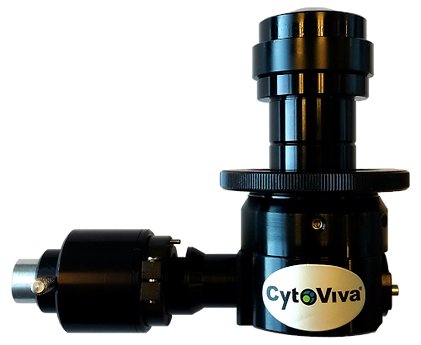
With its Enhanced Darkfield (EDF) Illuminator, CytoViva has improved on the performance and operability of darkfield microscopy to make these imaging advantages accessible to a wide range of researchers. The patented (US patents No. 7,542,203, 7,564,623) illuminator, which is compatible with most research-grade optical microscopes, is currently used by hundreds of nanotechnology laboratories around the world. Simply put, CytoViva's enhanced darkfield optics allow researchers to see things they have never been able to see before. This illumination technique enables scientists to optically observe a wide range of nanoscale materials quickly and easily in solution, live cells, tissue and materials-based matrices. In addition, non-fluorescent live cells and pathogens can be easily observed at a level of detail not possible with traditional optical imaging techniques such as phase contrast or differential interference contrast. CytoViva's Enhanced Darkfield Illuminator is specifically designed to overcome the performance and operational issues resident in standard darkfield optics. This improved performance has been accomplished by managing the source light onto the sample in a highly structured manner. The result is an improvement in the scattering signal-to-noise ratio up to ten times when compared to traditional darkfield configurations. These results have been verified in multiple independent tests (see Figures 1 and 2). With CytoViva's enhanced darkfield microscopy, nanomaterials as small as 10nm – 20nm can be imaged right from your laboratory benchtop3. CytoViva's enhanced darkfield microscope optics work by coupling the source light directly to the darkfield condenser optics via light guide. These darkfield optics include; special collimating lenses and mirrors that align and fix the geometry of the light to match the geometry of the condenser. This creates a very narrow, oblique angle of light that can be precisely focused onto the sample. The result is very intense scatter from nanoscale samples against a very dark background. This high-performance capability not only provides users with previously unobtainable images, but it also allows established techniques such as hyperspectral and Raman microscopy to be used in new and exciting ways. Source illumination compatible with this system can be halogen, mercury, xenon or even laser, depending on the application. Lastly, when combined with CytoViva's Hyperspectral Imaging capability, this high signal-to-noise microscopy method enables researchers to spectrally characterize and map nanoscale samples in a wide range of environments.
CATEGORY
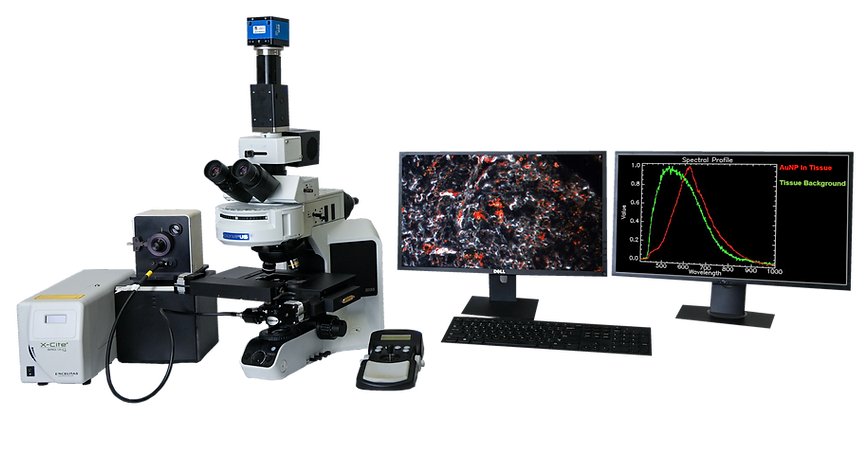
CytoViva’s Hyperspectral Microscope technology was specifically developed for spectral characterization and spectral mapping of nanoscale samples imaged with the patented CytoViva darkfield-based microscope. In addition, this hyperspectral imaging technology supports a wide range of other types of samples, from micro to macro in scale. Hyperspectral microscope images appear very similar to a traditional optical microscope image with one important difference. Each pixel of a hyperspectral image provides the complete reflectance spectral response of that pixel’s spatial area within the VNIR or SWIR spectral range. This enables nondestructive spectral measurements of nanoscale elements in the full spatial context of the sample image. At 100x magnification, a hyperspectral microscope image may contain as many as 700,000 pixels, each as small as 128nm each. This hyperspectral data is recorded at approximately 2nm of spectral resolution in the VNIR range, enabling minute spectral differences to be measured from pixel to pixel within the image. Hyperspectral microscope images can be captured of both biological and materials-based nanoscale samples. These nanoscale materials may be integrated in a wide range of biological or materials based environments. These hyperspectral images are created in a line scan or “pushbroom” fashion, by moving the sample across the field of view of the microscope and spectrograph via an automated translational microscope stage. Typically these hyperspectral images are created in seconds or minutes, depending on the required exposure. Components for the microscopy based hyperspectral imaging system include a specialized light source, automated translational stage, transmission diffraction grating spectrograph and camera. These components are integrated to work together with highly functional image capture and analysis software. This proprietary software provides the ability to compare spectra within a sample image or among large numbers of samples. It can also build a spectral library of unique samples elements and using this spectral library, these sample elements can then be mapped in subsequent samples. CytoViva hyperspectral imaging can be acquired in either the visible near-infrared (VNIR 400 nm – 1,000 nm) wavelength ranges as well as in the short wave infrared (SWIR 900 nm – 1,700 nm) wavelength ranges.
CATEGORY
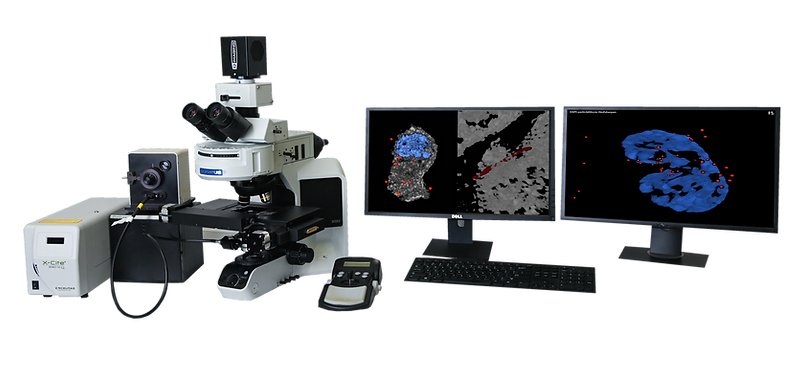
The CytoViva 3D Enhanced Darkfield Imaging System provides a method for locating non-labeled nanostructures (particles, tubes, etc.) in a variety of translucent matrices (cells, tissue, organisms). This technique leverages the high signal-to-noise optical performance of the patented CytoViva Enhanced Darkfield Microscope Technology in combination with patent-pending deconvolution and particle location routines to provide users with a three dimensional optical model of their sample. Most importantly, this technique does not require the use of fluorescent labels on the nanoparticles to obtain an image of the particles, thus removing the potentially negative influence of these labels on the sample. The 3D image is created by acquiring and storing a “stack” of equally spaced two dimensional images using the CytoViva Enhanced Darkfield Microscope Technology, a piezo-driven Z-axis stage and CytoViva’s proprietary image acquisition and control software. This stack of images is then processed using CytoViva 3D Image Analysis ImageJ plug-ins to locate the subject particles, as well as, deconvolve the surrounding cells, tissue or other translucent matrix. The resulting optical image is then viewed in an ImageJ 3D viewer. The use of ImageJ also allows further processing of the data in an environment familiar to many users. The images above illustrate three examples of the 3D capability. Figure 1 is a 3D deconvolution of nanoparticles (NPs) in a cell with the NPs in red, the nuclear structure in blue and the cell structure in gray. Figure 2 is a 3D deconvolution of a carbon nanotube piercing a tissue section. The CytoViva 3D Enhanced Darkfield Imaging System is designed to facilitate research in a variety of applications in nanobiology (targeted drug delivery and pathogen detection), nanotoxicology (nanoparticles and carbon nanotubes in tissue), and others where it is useful to understand the location of nanostructures in a three dimensional space. This capability is fully compatible with CytoViva’s Hyperspectral Imaging system and can be operated on the same microscope platform, thus allowing existing systems to be easily upgraded to include this capability.
CATEGORY
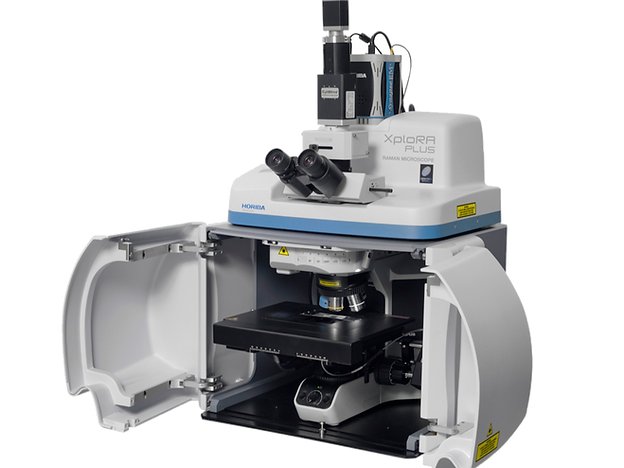
HORIBA Scientific and CytoViva have integrated confocal Raman imaging, hyperspectral imaging and enhanced darkfield imaging onto the same microscope platform. These combined modalities are very important for nanomaterial studies. Combining three different rapid imaging methods allows an easy observation, characterization and identification on the nanoscale. This integrated microscope package leverages the proven XploRA Plus Raman microscope from HORIBA Scientific. The system provides for full confocal Raman and PL imaging and the ability to select from single or multiple laser illumination options, including 532 nm, 638 nm or 785 nm. This integrated imaging spectrometer includes four gratings mounted on a motorized turret for full resolution, range and coverage (gratings are 600, 1,200, 1,800, 2,400 gr/mm). It also includes a CCD or EMCCD for enhanced sensitivity. The XploRA acquisition and analysis is conducted with the user friendly LabSpec6 software package. The KnowItAll Horiba Raman library search software is also available with this technology. When the microscope is equipped with the CytoViva Enhanced Darkfield and Hyperspectral technology and HORIBA Raman capabilities, it can capture very large area hyperspectral and darkfield images in minutes. The hyperspectral images are created with high spatial and spectral resolution, and closely resemble the sample as observed optically in the microscope eyepiece. Using the XploRA, Raman spectra of selected sample regions of interest in the identical field of view can be quickly captured. This can be done as a single shot, in a line across the field of view, or in a full Raman map. This allows for cross correlation of the Raman spectra with the broadband hyperspectral signal images, insuring accuracy of data. See the example below demonstrating the ability to cross correlate hyperspectral imaging with the Raman signal of a multi-walled carbon nanotube in stained tissue.
CATEGORY
